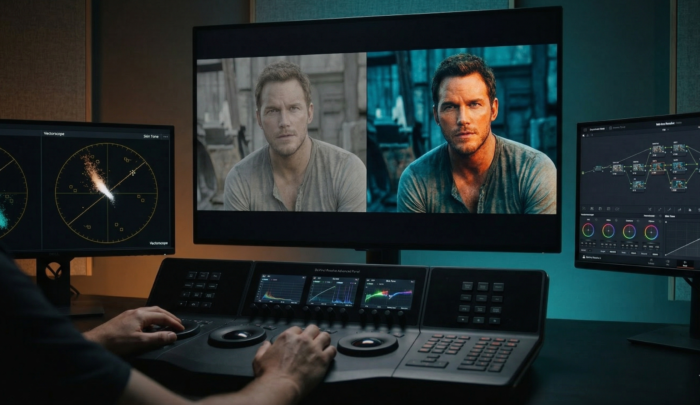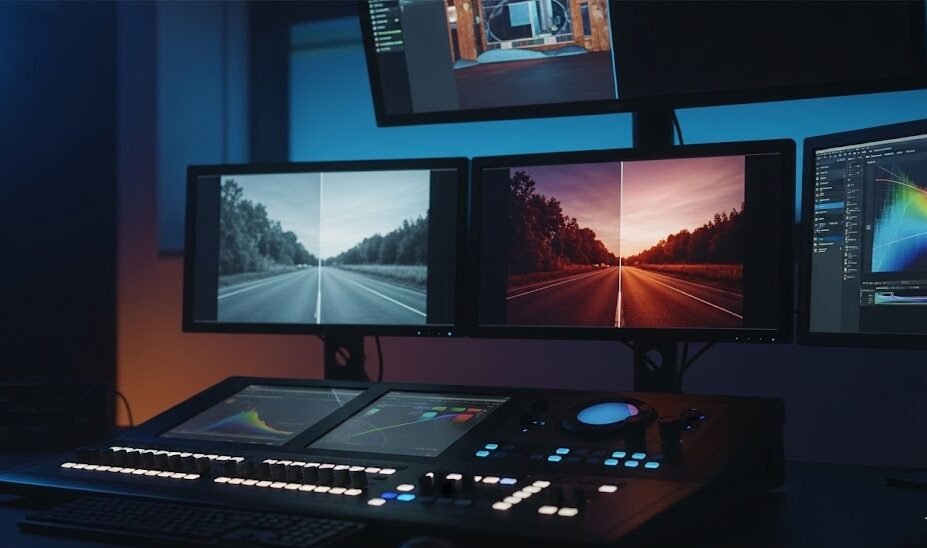
The pursuit of cinematic excellence in contemporary post-production is often defined by the colorist’s ability to maintain visual continuity across thousands of disparate clips. In the high-stakes environment of professional filmmaking, the request to “copy color grade to another clip” is not merely a technical task but a fundamental pillar of a streamlined workflow. As high-resolution digital acquisition and complex, multi-camera productions become the industry standard, the manual replication of grading parameters is no longer viable. DaVinci Resolve, the industry’s preeminent color grading suite, provides a sophisticated architecture for grade propagation, ranging from simple clipboard operations to database-driven synchronization tools that maintain consistency across multiple timelines and projects. This report explores the technical nuances, strategic implementations, and advanced methodologies for transferring color information within the Resolve ecosystem.
Table of Contents
- Foundational Clipboard Operations and Keyboard Efficiency
- The Middle-Click Revolution: Ergonomic Grade Propagation
- The Gallery and the Persistence of Stills and PowerGrades
- Memories: The Rapid Iteration Banks
- Hierarchical Grading Structures: The Power of Groups
- Source-Level Synchronization: Remote vs. Local Grading
- Advanced Migration and Version Management with ColorTrace
- Selective Attribute Preservation: Sizing, Tracking, and Keyframes
- Innovation in Modularity: Shared Nodes and Resolve 19 Node Stacks
- Strategic Synthesis: Building a Professional Grading Pipeline
- Frequently Asked Questions (FAQ)
Foundational Clipboard Operations and Keyboard Efficiency
The primary entry point for most users seeking to transfer color information is the system clipboard. In DaVinci Resolve, the act of copying a grade is an all-encompassing operation that, by default, captures the entire state of the node graph for a selected clip. This includes every serial, parallel, and layer node, along with their respective primary corrections, secondary qualifiers, LUTs, and OpenFX plugins.
The Clipboard Mechanism
Utilizing the standard Ctrl + C (Windows) or Cmd + C (Mac) command on the Color page allows the colorist to store the active node tree in the software’s memory. When a target clip or a selection of multiple clips is highlighted, the paste command (Ctrl + V or Cmd + V) replaces the existing node structure of the target with the copied parameters. This operation is instantaneous and serves as the quickest method for one-off transfers between distant shots in a timeline. However, the fundamental nature of this operation is destructive; unless specifically managed through advanced settings, it will overwrite any existing work on the target clip, including laborious stabilization or tracking data.
Sequential Propagation via Hotkeys
For sequences characterized by identical lighting and camera setups, the software offers a dedicated set of “Apply Grade” hotkeys that bypass the traditional copy-paste cycle. The “Apply Grade from One Clip Prior” and “Apply Grade from Two Clips Prior” functions are essential for sequential grading. In professional practice, these are frequently mapped to the minus (-) and plus (+) keys, respectively.
The logic behind these shortcuts is rooted in the “ripple” philosophy of grading. As the colorist progresses through a timeline, the grade from a reference shot is “pulled” forward into the next. This facilitates a rhythmic workflow where the colorist balances a master shot and then rapidly propagates that balance to subsequent angles within the same setup. This sequential approach is often the first step in establishing a baseline before moving into more complex group-based or remote grading strategies.
| Method | Primary Input | Scope of Transfer | Destructive? |
|---|---|---|---|
| Ctrl + C / Ctrl + V | Keyboard | Entire Node Tree | Yes (Overwrites target) |
| Apply Grade from Prior | Key (default: -) | Entire Node Tree | Yes |
| Apply Grade from 2 Prior | Key (default: +) | Entire Node Tree | Yes |
| Append Node | Menu / Shortcut | Single Node | No (Adds to existing) |
For aspiring filmmakers looking to understand the deeper creative implications of these technical moves, the Filmmaking Masterclass at cinemastery.academy provides essential context. In Module 26: Psychology of Color, taught by industry veteran Nick Kioroglou, students learn how to use these propagation tools not just for speed, but to ensure that the emotional “language” of a scene remains consistent through every cut.
The Middle-Click Revolution: Ergonomic Grade Propagation
In high-volume grading environments where efficiency is paramount, the middle-mouse button (the scroll wheel) serves as a critical interface element. This specific interaction is widely considered the most efficient way to “Davinci copy color grade to another clip” within the active timeline.
Ergonomic Workflow and Bulk Application
The procedure for the middle-click transfer is elegant in its simplicity: the colorist first selects the target clip (or a multi-selection of target clips) using the left mouse button. Once the targets are highlighted, the colorist simply hovers the cursor over the desired source clip in the thumbnail timeline and depresses the scroll wheel. Resolve instantly clones the source node tree onto all selected targets.
The efficiency of this method is most apparent when grading interview sequences or multicam edits. A colorist can select all thirty instances of a “Camera B” angle across a 60-minute timeline and, with a single middle-click on a graded reference, unify the look of the entire camera’s contribution to the project. This bypasses the need for the gallery or complex menu navigation, making it a favorite among “dailies” colorists and editors performing quick passes.
Hardware Considerations
The reliance on the middle-click highlights a broader technical requirement in the professional color suite: the necessity of a high-quality, three-button mouse or a dedicated grading panel. Many consumer-grade mice, particularly those with touch-sensitive surfaces (like the Apple Magic Mouse), do not offer a native middle-click that is reliable for this operation. Colorists often remap these functions to specialized hardware controllers, such as the DaVinci Resolve Micro or Mini Panels, which feature dedicated “Apply Grade” buttons to replicate this ergonomic advantage.
The Gallery and the Persistence of Stills and PowerGrades
While shortcuts and mouse clicks are ideal for immediate timeline work, the Gallery serves as the permanent repository for a colorist’s intellectual property. Stills and PowerGrades represent the “memory” of a project, allowing for the reuse of complex grading structures across different scenes and even different projects.
Stills vs. PowerGrades: The Scope of Visibility
In DaVinci Resolve, a “Still” is a reference frame coupled with its grading metadata, specific to the current project. When a colorist selects “Grab Still,” a snapshot of the current frame is saved in the Gallery. This serves as both a visual reference—allowing the colorist to use the “Image Wipe” feature to compare a live shot against a reference—and a data container.
“PowerGrades,” conversely, are shared across every project within the same database. This is the ideal location for a colorist to build a library of “look templates,” fixed node structures, or technical utilities (such as a standardized grain setup or skin tone protection node). When a new project is opened, the PowerGrades folder remains populated, providing an immediate starting point based on previous successful grades.
The Technical Anatomy of the Still File
When a still is exported for sharing or backup, Resolve generates two primary files:
- The .DPX File: A high-resolution image file that serves as the visual thumbnail.
- The .DRX File: A proprietary DaVinci Resolve eXchange file that contains the actual grading instructions, including node connections, primary settings, and secondary qualifier data.
For a grade to be successfully imported onto another system, both the .dpx and .drx files must be present in the same directory. If a LUT was utilized in the grade, it may also need to be exported and manually re-linked on the target system to ensure the look remains intact. This modularity allows for the “PowerGrade packs” that have become a staple of the professional community.
Memories: The Rapid Iteration Banks
Positioned between the temporary clipboard and the permanent Gallery are “Memories.” These are rapid-access slots (labeled A through H) that allow a colorist to store and recall grades using simple keyboard combinations.
Creative Comparison and Testing
The primary utility of Memories is in the development of variations. A colorist may create three different look options for a client—one warm, one cool, and one high-contrast—and save them to Memories A, B, and C. By using the Option + [Number] (Mac) or Ctrl + [Number] (Windows) command, the colorist can toggle through these options in real-time while the client watches the monitor.
This method is inherently more organized than the clipboard, as it allows for the storage of eight distinct “snapshots” that do not overwrite one another. Furthermore, Memories are visible in the Gallery as small thumbnails above the project stills, providing a visual confirmation of what is stored in each bank. For large-scale adjustments, the “Lightbox” view can be used to select multiple clips and apply a specific Memory globally, facilitating a rapid “bulk” update of a scene’s aesthetic.
Hierarchical Grading Structures: The Power of Groups
The most advanced and robust method for managing grades across multiple clips is the use of Groups. This feature moves away from the “copy-paste” model and toward a shared-source model, where a single adjustment propagates to every member of the group simultaneously.
The Four-Level Processing Pipeline
When clips are assigned to a group (by selecting them, right-clicking, and choosing “Add Into a New Group”), the node graph interface transforms to show four distinct levels of processing. Understanding this hierarchy is essential for professional color management.
| Level | Position in Signal Flow | Primary Function |
|---|---|---|
| Group Pre-Clip | First | Technical normalization, input transforms (CSTs), noise reduction. |
| Clip | Second | Individual shot balancing (exposure, white balance), shot-specific masks. |
| Group Post-Clip | Third | Creative look development, contrast, film emulations, global scene color. |
| Timeline | Final | Global output transforms (ODTs), film grain, mastering limiters. |
Strategic Advantage: Pre-Clip and Post-Clip Logic
The power of this system lies in the separation of technical matching from creative grading. By placing a Color Space Transform (CST) in the Group Pre-Clip level, a colorist can ensure that every shot in a scene—regardless of the camera it was shot on—is normalized into a common working space, such as DaVinci Wide Gamut Intermediate, before the grading begins.
Conversely, the Group Post-Clip level is where the “art” happens. If the director requests a slight increase in the “moodiness” of a scene, the colorist adjusts a single node in the Post-Clip section, and every shot in the sequence is updated instantly. This prevents the “bottleneck” of having to copy and paste adjustments shot-by-shot, which is not only slow but also prone to human error.
Managing Group Complexity
Professionals often organize groups by camera type (e.g., “Alexa LogC3,” “RED IPP2”) or by scene (e.g., “Dining Room – Night”). The use of “Smart Filters” can further automate this by automatically grouping clips based on metadata such as “Camera Serial Number” or “Reel Name,” ensuring that as new shots are added to the timeline, they automatically receive the correct baseline grade.
More detailed instruction on setting up these “industry standard” pipelines can be found in the Editing modules at cinemastery.academy. The curriculum emphasizes that a great editor or colorist is defined by their organization; mastering the group structure is the difference between a chaotic session and a professional workflow.
Source-Level Synchronization: Remote vs. Local Grading
While groups are based on manual timeline selections, Remote Grades offer a database-level link between clips and their original source media. This is a “hidden” power feature that is essential for long-form documentary and multi-camera work.
The Concept of Media Pool Linking
By default, Resolve uses “Local Grades,” meaning each instance of a clip on the timeline is an independent entity. If you cut a single 20-minute interview into 50 pieces, each piece is its own node graph.
Switching to “Remote Grades” (accessible via right-click on the clip thumbnail) changes this relationship. In Remote mode, the grade is linked to the clip in the Media Pool. If you grade the first instance of an interview, every other instance of that same file on the timeline—and in other timelines within the project—is updated automatically. This is indicated by a small pink double-square icon on the clip thumbnail, signifying that the grade is “linked”.
Advantages for Cross-Timeline Consistency
Remote grades are particularly potent when working on multiple versions of a project (e.g., a 60-second commercial and a 30-second cutdown). Instead of copying grades from one timeline to another, the colorist simply uses Remote grades. Any refinement made in the long-form version is immediately reflected in the short-form version, ensuring perfect continuity without the need for manual synchronization.
The Hybrid Workflow: Remote to Local
A common professional strategy involves starting a project in Remote mode to establish a global balance for all source media. Once the general look is approved, the colorist can select all clips and choose “Copy Remote Grades to Local”. This effectively “bakes” the current remote grade into independent local versions for each clip, allowing for the final shot-specific tweaks—such as tracking a subject’s face or darkening a background—without affecting other instances of that shot.
Advanced Migration and Version Management with ColorTrace
In professional post-production, the edit is rarely “locked” before grading begins. As new cuts arrive from the editorial department, the colorist must “trace” the grades from the old timeline onto the new one. ColorTrace is the specialized tool designed for this transition.
The ColorTrace Interface and Logic
ColorTrace functions by comparing a “Source Timeline” (the graded one) against a “Target Timeline” (the new cut). It uses a combination of timecode and reel name metadata to identify matches. The interface provides a color-coded status for every clip:
- Green: A perfect match was found based on timecode and metadata. The grade can be transferred with 100% confidence.
- Blue: Multiple potential matches exist (common with VFX shots or stock footage with 00:00:00:00 timecode). The colorist must manually select the correct source from a list of candidates.
- Red: No match was found. This indicates new footage that has been added to the cut and will require a fresh grade.
Manual ColorTrace: The “Sanity Saver”
There are scenarios where automatic matching fails, such as when a project changes frame rates (e.g., from 23.976 to 29.97). In these instances, Resolve prohibits automatic matching, and the colorist must enter “Manual ColorTrace” mode. This mode allows the colorist to manually point to the source clip for every shot in the new timeline, ensuring that days of work are not lost during an unexpected technical shift.
Beyond mere color values, ColorTrace can also propagate “Sizing” data and “Group Assignments,” making it the most comprehensive way to migrate a project’s entire grading architecture between different versions of an edit.
Selective Attribute Preservation: Sizing, Tracking, and Keyframes
One of the most frequent errors in the grading suite is the accidental loss of technical work—such as stabilization or motion tracking—when applying a grade from another clip. To avoid this, the colorist must master the selective filtering of copied data.
Keyframe Timeline Mode: The “Color Only” Guard
A critical setting located in the Keyframes panel (bottom right of the Color page) is the Keyframe Timeline Mode. By default, this is often set to “All.” In this state, copying a grade via middle-click or Gallery still will overwrite everything, including the target clip’s stabilization and spatial transforms.
By switching this toggle to “Color,” the software filters the data transfer to only include color node information, ignoring any “Sizing” or “Input Transform” data. This allows the colorist to rapidly apply looks without destroying the painstaking tracking work already completed on the target shots.
Paste Attributes vs. Apply Grade
While “Apply Grade” is a broad-stroke tool, “Paste Attributes” (Option + V or Alt + V) is a surgical one. Found on the Edit page, this command brings up a checklist of exactly what parameters should be transferred.
| Attribute Category | What is Transferred? | Use Case |
|---|---|---|
| Color Correction | The entire node tree and grading values. | The primary method for moving a “look.” |
| Video Attributes | Zoom, Position, Rotation, Cropping. | Matching framing across multiple camera angles. |
| Plugins | OpenFX and third-party effects. | Applying noise reduction or grain globally. |
| Fusion Effects | Compositing nodes and visual effects. | Propagating titles or graphics. |
Innovation in Modularity: Shared Nodes and Resolve 19 Node Stacks
As grading becomes more complex, the need for modularity has led to the development of Shared Nodes and the recently introduced Node Stacks in DaVinci Resolve 19.
Shared Nodes: The “Master Toggle”
A Shared Node is a specific node that is globally linked across multiple clips. Any change made to a Shared Node on Clip A will instantly update every other instance of that Shared Node across the entire project.
This is particularly useful for elements like “Film Grain” or a “Creative Tint” that may need to be adjusted globally but aren’t suitable for a Group Post-Clip level because they need to exist at a specific point within a clip’s individual node structure. To create one, a colorist right-clicks a standard serial node and selects “Save as Shared Node”.
Node Stacks: The New Organizational Frontier
Resolve 19 introduced Node Stacks, allowing colorists to create independent “layers” within a clip’s node graph. This is a breakthrough for template-based workflows. For example, a colorist can have:
- Stack 1: Technical conversion (IDT).
- Stack 2: Primary Balancing.
- Stack 3: Creative Look.
The advantage here is the ability to “copy grade to another clip” while only targeting a specific stack. While traditional “Apply Grade” methods often copy all stacks, advanced users utilize the “Display Node Graph” feature in the Gallery to isolate a specific stack and use the “Apply Active Color” command to update only the desired layer on the target clip. This prevents the accidental overwriting of balancing work when updating a creative look.
Strategic Synthesis: Building a Professional Grading Pipeline
To truly master the instruction to “Davinci copy color grade to another clip,” one must view these tools as part of a holistic pipeline. A professional workflow generally follows this progression:
- Baseline Setup: Use Project-Level Color Management or Group Pre-Clip nodes to normalize the footage into a wide gamut workspace.
- Remote Balancing: Utilize Remote Grades to establish a baseline for all source media, ensuring that every time a clip is used, it starts from a healthy place.
- Group Look-Setting: Organize the timeline into scene-based groups and develop the aesthetic in the Group Post-Clip section.
- Shot Matching: Move to the Clip level and use the middle-click and Gallery stills to perform fine-tuned balancing between adjacent shots.
- Refinement: Use “Paste Attributes” or “Shared Nodes” to apply global finishing touches like grain, sharpening, or vignettes without disturbing the underlying color work.
By integrating these disparate methods, a colorist can manage even the most complex productions with speed and precision. For those who want to see these workflows in action and learn the professional secrets of the trade, exploring the resources at cinemastery.academy is the next logical step. The Filmmaking Masterclass doesn’t just teach you where the buttons are; it teaches you how to think like a professional filmmaker.
Frequently Asked Questions (FAQ)
Does copying a grade always overwrite my stabilization?
By default, most methods (like middle-click or Gallery stills) will overwrite stabilization data. To prevent this, go to the Keyframes panel and set the Timeline Mode to “Color” before applying the grade. This tells Resolve to only copy the color nodes and ignore the sizing/stabilization data.
How do I copy a grade from one project to another?
The most effective way is to use the Gallery. You can export a still as a .drx and .dpx file combination and then import them into your new project. Alternatively, saving your grade as a “PowerGrade” in the Gallery will make it automatically visible in every project within your current database.
What is the difference between a LUT and a PowerGrade?
A LUT (Look-Up Table) is a fixed mathematical transformation that only carries color, saturation, and brightness data. A PowerGrade is a collection of DaVinci Resolve nodes. Unlike a LUT, a PowerGrade is fully adjustable; you can see every node the colorist used and tweak the individual settings, power windows, and qualifiers.
Can I copy just a single node to another clip?
Yes. In the Node Editor, select the specific node you want, press Ctrl+C (Cmd+C), then navigate to the target clip. Select an empty node (or create a new one with Alt+S) and press Ctrl+V (Cmd+V).
When should I use “Remote Grades” instead of “Groups”?
Use Remote Grades when you want to link a grade to the original file in the Media Pool (great for interviews or recurring shots). Use Groups when you want to link disparate shots together because they belong to the same scene, even if they come from different cameras or files.
Why isn’t my middle-click working?
This is often a hardware or OS-level issue. Some mice (like the Apple Magic Mouse) do not have a physical middle button. You may need to use a third-party utility to enable middle-click emulation, or better yet, invest in a dedicated three-button mouse or grading panel for professional work.
What happens to my grade if the editor changes the timeline?
This is where ColorTrace comes in. By using ColorTrace, you can compare your old graded timeline with the new edit and automatically migrate your grades to the new version, even if the clips have been moved or shortened.
Can I save my color grade as a preset for future use?
Yes, the best way to do this is by saving it as a PowerGrade in your Gallery. You can organize these into folders (e.g., “Vintage Looks,” “Utility Nodes”) and they will be available to you in every project you work on from that point forward.
For a complete mastery of these techniques and to elevate your projects to a professional standard, visit cinemastery.academy and join our community of world-class filmmakers. The journey from “copying a grade” to “mastering the look” starts here.